How to Fix Missing DLL for MaterialDesignThemes Package (Version 5.2.1)

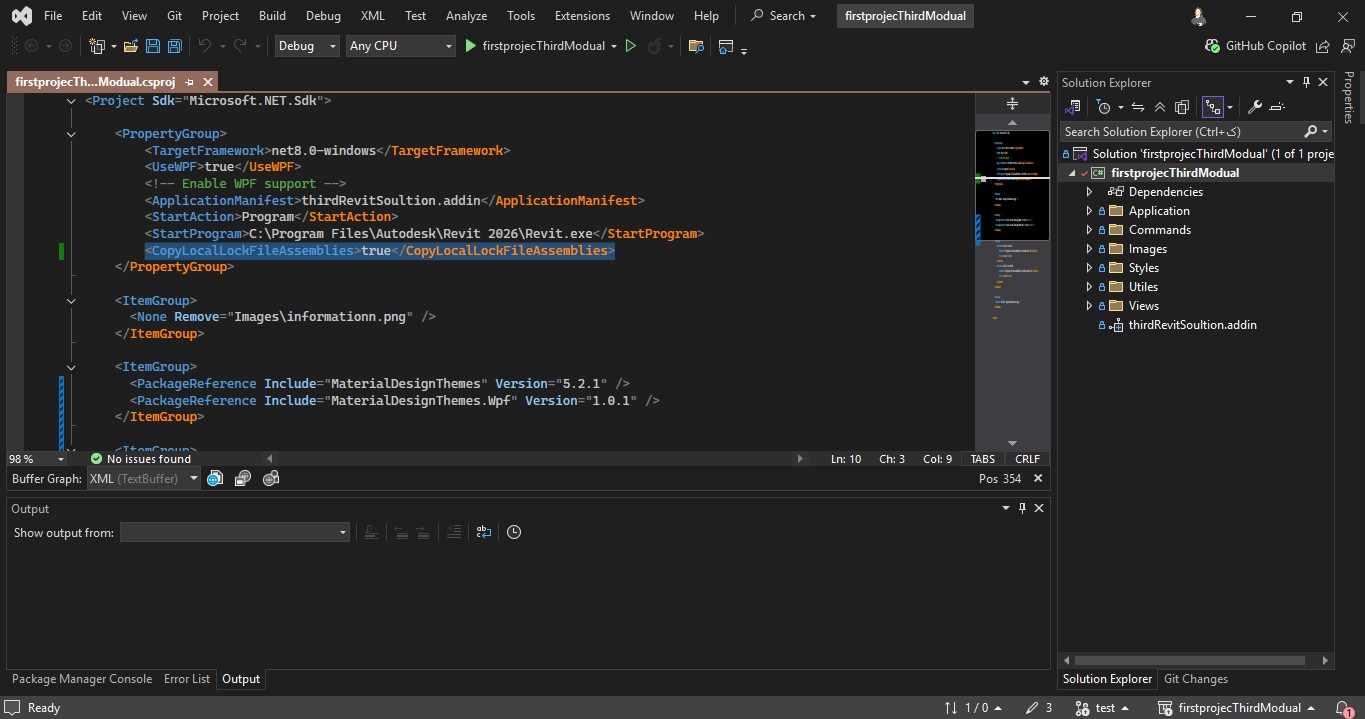
To fix the issue of missing MaterialDesignThemes.Wpf.dll in the output directory after installing the NuGet package, you need to add the following property to your .csproj file:

    
    <CopyLocalLockFileAssemblies>true</CopyLocalLockFileAssemblies>
  

Steps to Apply the Fix:

  1. Open the .csproj file:
    • In Visual Studio, right-click your project in Solution ExplorerUnload Project.
    • Right-click again → Edit Project File.
  2. Add the property to the .csproj file:
    • Find the closing </Project> tag.
    • Add <CopyLocalLockFileAssemblies>true</CopyLocalLockFileAssemblies> inside the <PropertyGroup> section.
            
            <Project Sdk="Microsoft.NET.Sdk.WindowsDesktop">
      <PropertyGroup>
        <OutputType>WinExe</OutputType>
        <TargetFramework>net5.0-windows</TargetFramework>
        <UseWPF>true</UseWPF>
        <CopyLocalLockFileAssemblies>true</CopyLocalLockFileAssemblies>
      </PropertyGroup>
    
      <ItemGroup>
        <PackageReference Include="MaterialDesignThemes" Version="5.2.1" />
      </ItemGroup>
    </Project>
          
  3. Reload the Project: Save the file → right-click project → Reload Project.
  4. Rebuild the Project: Build → Clean Solution → Build → Rebuild Solution.

Explanation:

The <CopyLocalLockFileAssemblies> property ensures that all assemblies referenced by the project (including NuGet packages like MaterialDesignThemes) are copied into the output directory (bin/Debug or bin/Release). Without this property, some DLLs might not be copied, causing missing DLL errors at runtime.

By adding this property, you ensure that MaterialDesignThemes.Wpf.dll is included in the build output, fixing the issue of missing DLL files.